 ZipCombiner
Two ways to move
| Route | Best when | Watch out for |
|---|---|---|
| Direct transfer to iCloud Photos | You use iCloud Photos, have room in iCloud for the whole library, and Takeout offers the option for your account | Not available with Advanced Data Protection turned on, or for child or Managed Apple Accounts; takes hours to days; no copy on your computer |
| Takeout download, then import | You want a copy on your own Mac or PC, don't use iCloud Photos, or the transfer isn't offered to you | Many photos arrive without their date and location inside the file; ZipCombiner puts them back before you import |
Route 1: the direct transfer to iCloud Photos
Google and Apple offer a transfer that copies your Google Photos library straight into iCloud Photos, from server to server, so nothing passes through your computer. Start it in Google Takeout: choose Google Photos, choose iCloud Photos as the destination, and sign in with your Apple Account. It can take from a few hours to a few days, and your photos stay in Google Photos too, since it's a copy. Apple explains the details in Transfer a copy of your photos and videos to iCloud Photos.
Check first that iCloud has room for the whole library. If Takeout doesn't offer iCloud Photos for your account, or you'd rather keep a copy on your own computer, use the second route.
Route 2: download with Takeout, then import
- At takeout.google.com, click Deselect all, tick Google Photos and click Next step. Choose Export once, file type .zip and a file size of 10 or 50 GB, then Create export.
- When Google emails you, download every part into one folder. The links last about a week.
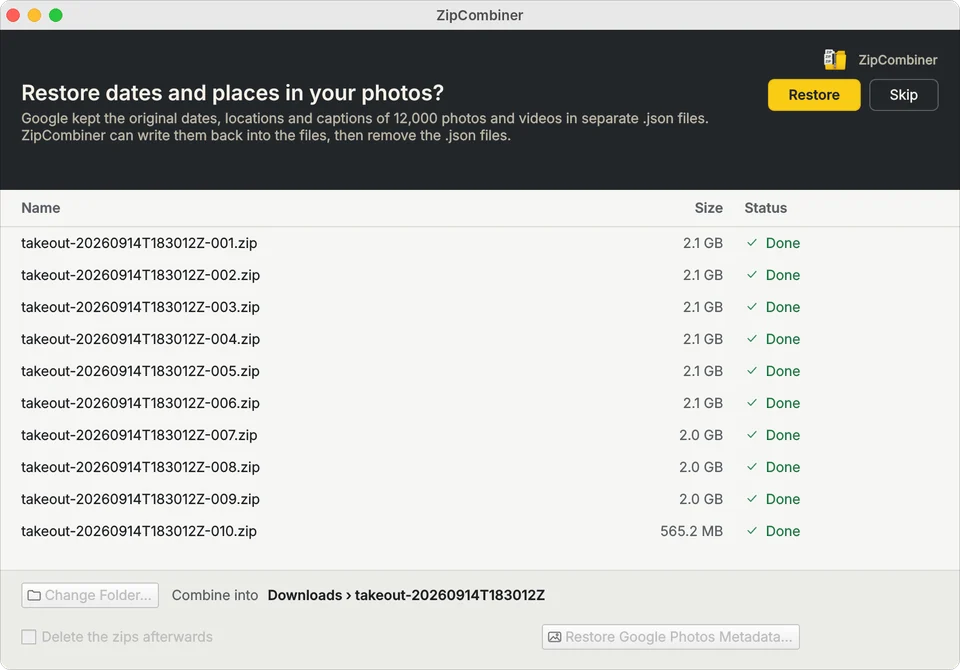
- Drop all the zips into ZipCombiner and click Extract and Combine. When it asks to restore dates and places in your photos, click Restore.
- In Photos on your Mac, choose File › Import…, select the Google Photos folder inside the combined folder, and import all new items.
- With iCloud Photos turned on (Photos › Settings › iCloud), the library uploads to iCloud and appears on your iPhone and iPad.
On a Windows PC, add the restored photos to iCloud Photos with the iCloud for Windows app (with Photos turned on) or at icloud.com.
Why the dates matter
Apple Photos sorts your library by the date each photo was taken, read from inside the file. Google Takeout often leaves that date, the location and the caption in a separate .json file beside each photo instead, so an imported library can pile up on the day you downloaded it, with no places on the map. Restoring them before you import fixes that; see photos showing the wrong date.
Albums and duplicates
Takeout puts your photos in year folders (“Photos from 2019”) and gives each album its own folder, so a photo that's in an album can appear twice. Photos on a Mac notices items it has already imported and asks before importing duplicates. To rebuild an album, import its folder on its own and put the new items in an album.
Questions
Can I transfer Google Photos straight to iCloud?
Yes, for eligible accounts. Google Takeout offers iCloud Photos as a destination and copies your library from server to server. It needs enough iCloud storage and isn't available with Advanced Data Protection turned on.
Why do my Google Photos show the wrong date in Apple Photos?
Takeout often keeps the date taken in a separate .json file, so Photos falls back to the file's own date. Restore the dates with ZipCombiner before importing.
Do I need ZipCombiner for the direct transfer?
No. ZipCombiner is for the download route: it extracts all the Takeout zips into one folder and puts the dates and places back before you import.
Do videos keep their dates too?
Yes. MP4 and MOV videos get their dates and locations back. Other formats, such as HEIC, get their file dates set to the date taken.