 ZipCombiner
ZipCombiner help
Everything in the app's Help window, plus a few extra tips. The same help is in ZipCombiner under Help › ZipCombiner Help.
Combine your zips
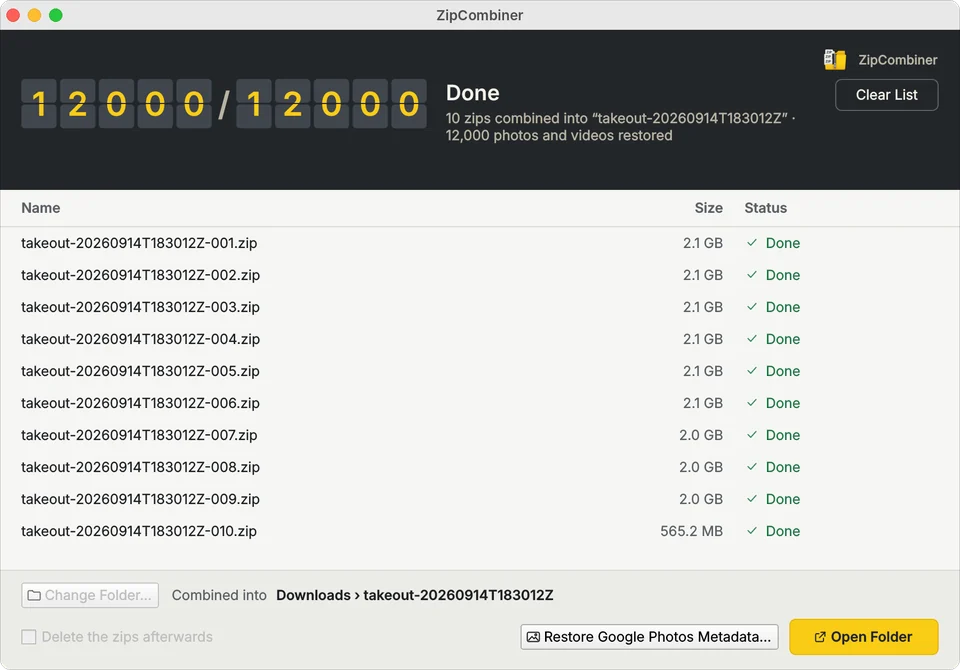
- Drop all the zips into the window, or click the empty list to choose them. Add every part:
takeout-…-001.zip,-002.zip, and so on. - Check the folder on the Combine into line. It's a new folder next to your zips unless you pick another with Change Folder…
- Click Extract and Combine. Each zip shows its progress, and the board shows how many are done and the file being extracted.
When it's finished, click Show in Finder (Mac) or Show in Explorer (Windows) to open the folder, or Clear List to start another job. The drive needs at least as much free space as the zips take up, plus some room to spare.
Zip types
- Separate zips: Google Takeout and Drive downloads, where each zip is complete on its own.
- Split zip: one archive cut into parts, such as
name.z01,name.z02, …,name.zip, orname.zip.001,name.zip.002, … All the parts must be in the same folder.
If ZipCombiner guessed wrong, click the type button on the board (for example “7 separate zips”) and choose the other type.
Google Photos dates, places and captions
Google Takeout keeps the date each photo was taken, where it was taken and its caption in separate .json files. After extracting, ZipCombiner offers to put them back: it writes them into the photos and videos, filling in only what's missing, sets each file's dates to the date taken, then deletes the .json files. JPEG, PNG, MP4 and MOV files get all of it; other formats, such as HEIC, get their file dates only. Dates are written in your computer's time zone.
For a Takeout folder you already unzipped, click Restore Google Photos Metadata… and choose the folder.
Options
- Delete the zips afterwards deletes each zip once everything in it has been extracted.
- If a file is already in the folder, ZipCombiner asks whether to replace it or keep the one you have.
- Stop ends the job; files already extracted stay in the folder.
If something goes wrong
- A zip marked Couldn't combine: click Details… on the board to see why. The usual cause is a damaged or incomplete download: download that part again from Google and add it.
- “Part … is missing”: every part of a split zip must be in the same folder.
- Password-protected zips aren't supported.
- On the Mac App Store version, macOS requires ZipCombiner to ask you to confirm the folder before extracting, unless you picked one with Change Folder…
- On Windows, see installing on Windows if Chrome or Windows warns you.
Still stuck? Contact us.